Migrate to new XOA
- 📦 Applies to
- Xen Orchestra
- 🗓️ Created
- 2025-06-30
- 🔄 Updated
- 2025-06-30
- 🏷️ Tags
Environment
- An existing XOA (Xen Orchestra Appliance) with a bound license.
- A newly deployed XOA to migrate to.
Procedure
1. Deploy new appliance
The first step is to deploy a new appliance. All needed information is here.
2. Export configuration
The second step is to export your current configuration by navigating to Settings -> Config. Here you will see a button labeled Download current config. Click on it, then an export modal will appear.
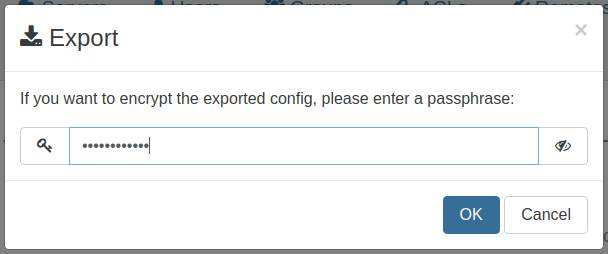
You can set a passphrase to encrypt the exported configuration.
3. Register and update the new appliance
On the new appliance, simply navigate to XOA > Updates, and enter your usual account information here. Then navigate to the license tab, and find the license that is bound to your old appliance. Click the Move license to this XOA button. It may take a minute or so to update in our license system, but you can then go back to the updates tab, and upgrade/update the appliance. It's important to update the newly deployed appliance before importing your config from the previous appliance, as otherwise it could potentially be from a newer version of xo-server.
4. Import configuration
Now it's time to import your configuration to the new appliance. Go to the Settings -> Config page of your new appliance. Here you have an import section where you can drag and drop your exported configuration file.
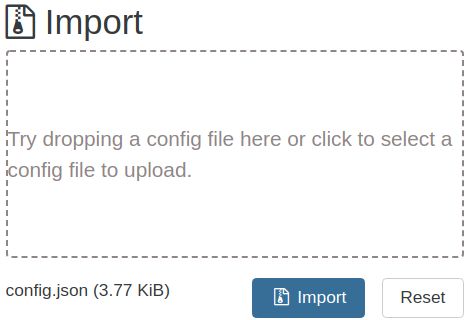
When your configuration is loaded, click to import. A new modal will appear to ask you the passphrase to decrypt your configuration. If you didn't set a passphrase when you exported your configuration, leave it empty.
Advanced users
If you made custom adjustments to the /etc/xo-server config file on your previous appliance, unfortunately you will have to recreate these modifications on the new appliance.
Verification
The new appliance is updated, holds the license moved from the old appliance, and runs with the imported configuration.