Bind a XCP-ng license
VKB-1098How-to
- 📦 Applies to
- XCP-ngXen Orchestra
- 🗓️ Created
- 2024-10-27
- 🔄 Updated
- 2024-10-27
- 🏷️ Tags
Environment
- A purchased XCP-ng license.
- Xen Orchestra connected to the pool containing the host to license.
Procedure
After purchasing an XCP-ng license, you need to bind it to the host:
-
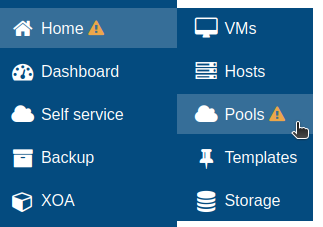
Click on the Home tab and select Pools.
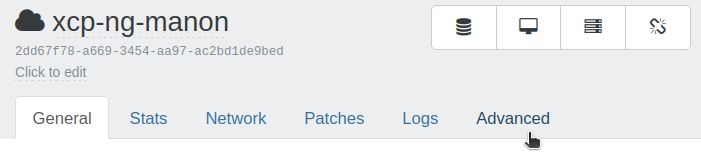
Choose the pool you are working with and go to the Advanced tab.
-
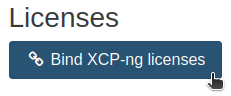
Under the Licenses section, click on the Bind XCP-ng licenses button.
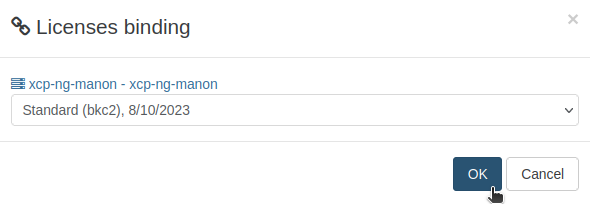
Select the license you want to bind and click OK.
-
If you go back to the Home tab and select Hosts, you should now see this message:

If you have any issues or if you want to buy licenses, please contact our sales team at sales@vates.tech.
Verification
The Hosts view shows the confirmation message that the license is bound to the host.
Was this page helpful?